
In this guide, learn how to create a project template
Want to view this guide all at once?
Download PDFProject Templates allow you to create reusable project structures, helping to save time when setting up similar projects.
Please note: You can only edit Project Templates that you are assigned as “Manager” to.
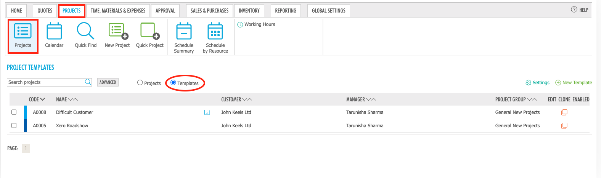
To view and create Project Templates, navigate to Projects and select Projects from the menu.
To the right of the search bar, select Templates as shown below.
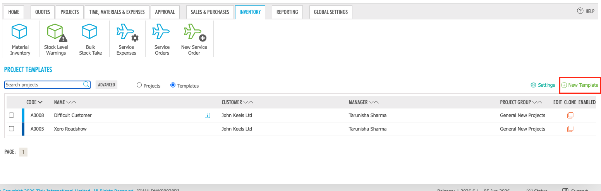
Click “+ New Template” to create a new template.
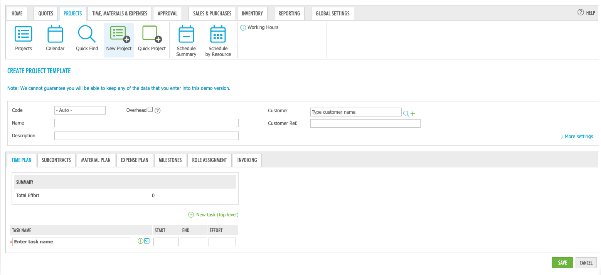
Enter the required information as you would when creating a standard project.
Once all necessary fields have been completed, click Save.
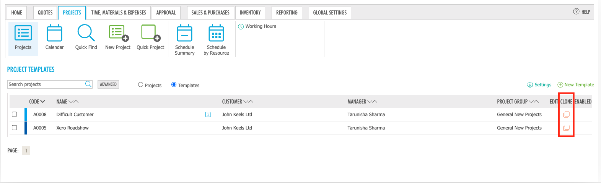
To create a new Project using an existing Project Template, click the Clone icon on the right-hand side of the desired template:
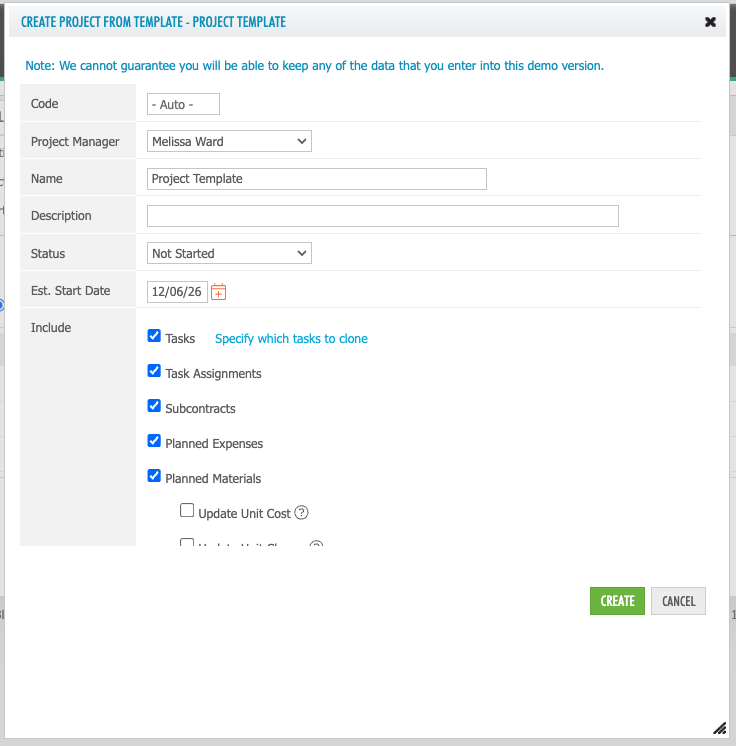
You will be presented with a list of fields and information that can be included in the new project.
Select the required options and click Create.
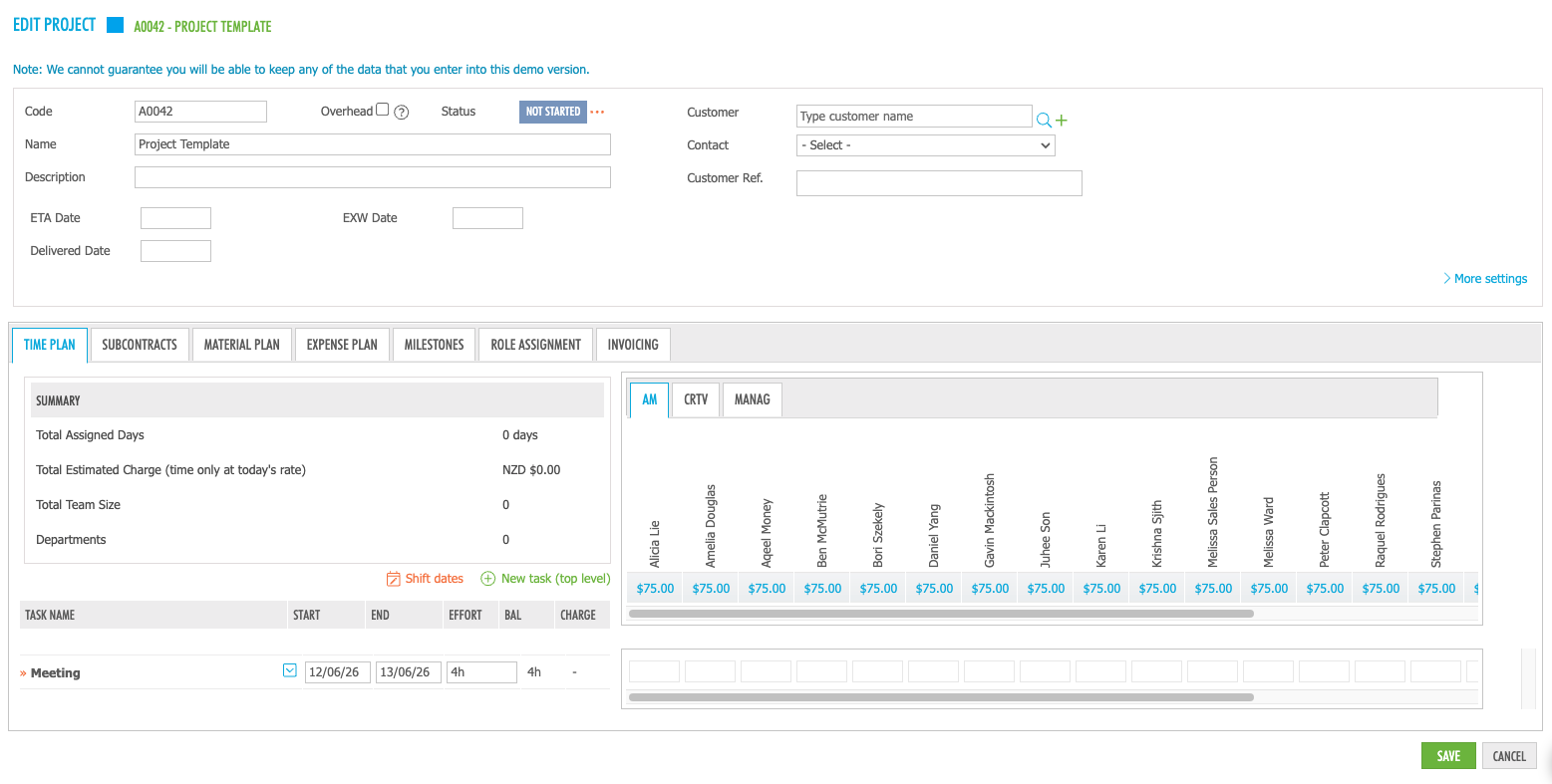
You will then be taken to the Edit Project screen, where you can make any additional changes required for the new project.
Once you have finished making changes, click Save.
You can also create a Project Template from an existing project.
Open the desired project and navigate to the Project Console. From here, click Create Template on the right-hand side of the screen.
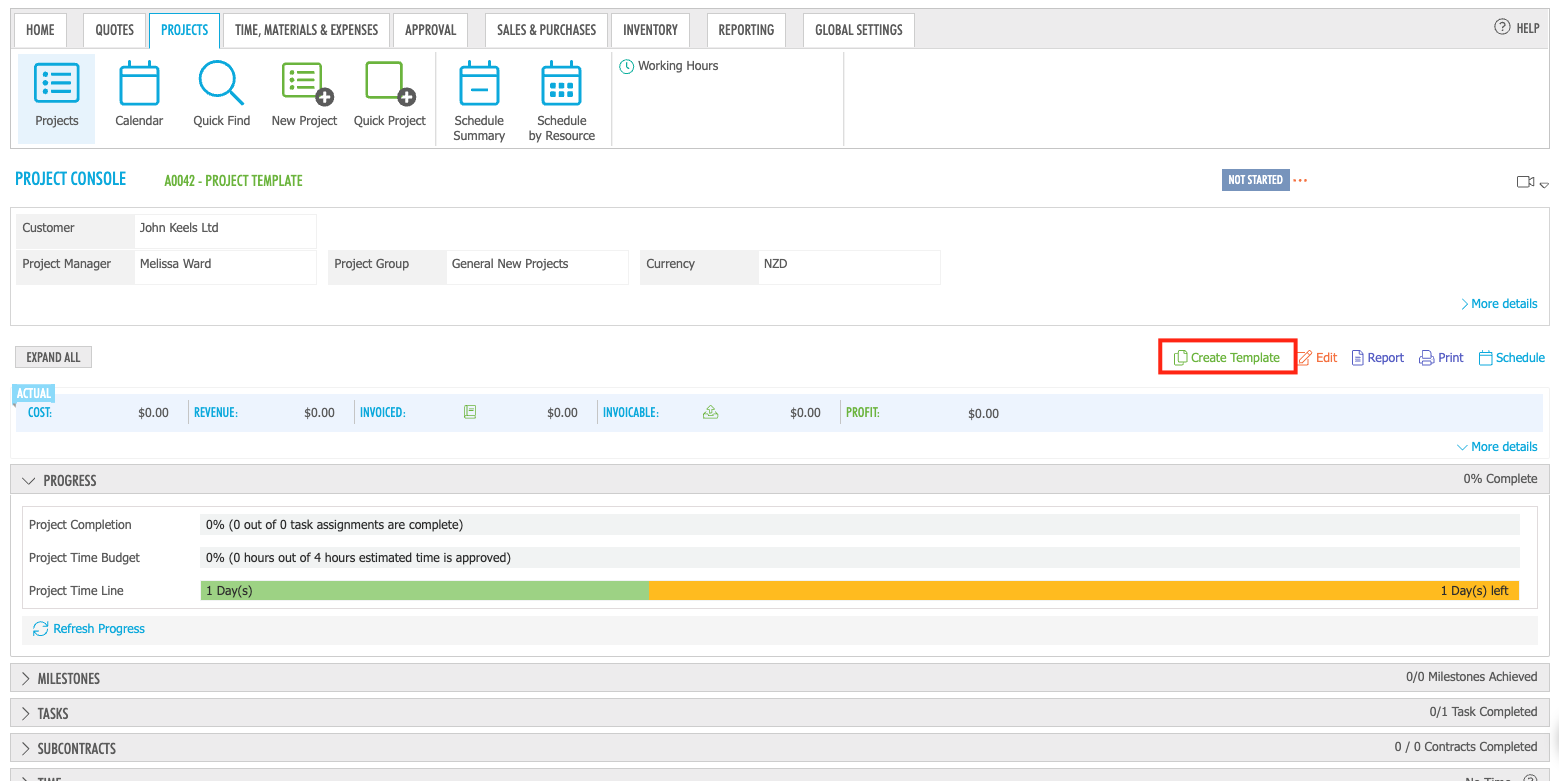
The project will be converted into a Project Template and will become available within the Templates list.
You can then use the template creation process outlined above to create new projects from the template.
Want to learn more? Check out these related guides