
In this guide, learn how to upload a sales order as a CSV file
Want to view this guide all at once?
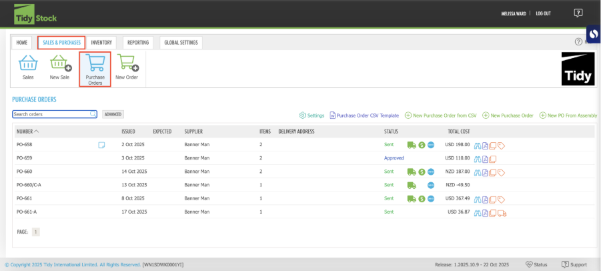
Download PDFFirst go to the “Sales and Purchases” and select “Purchase Orders”
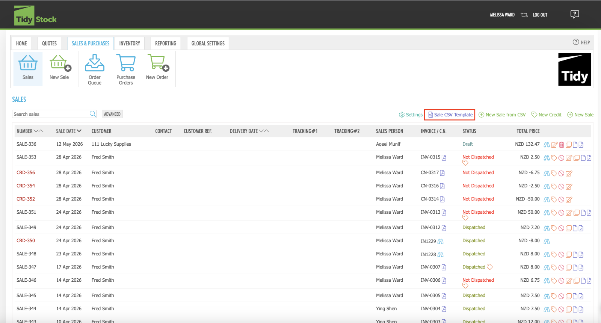
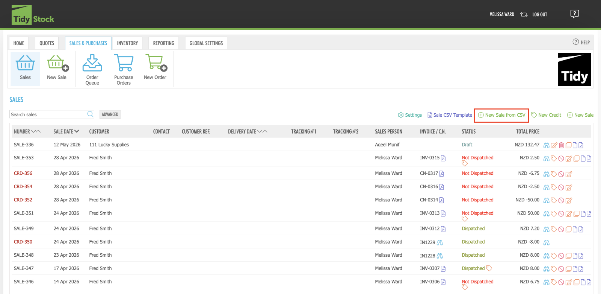
At the top right-hand side of the Sale Order list click “Sale CSV Template” to download the correct CSV template.
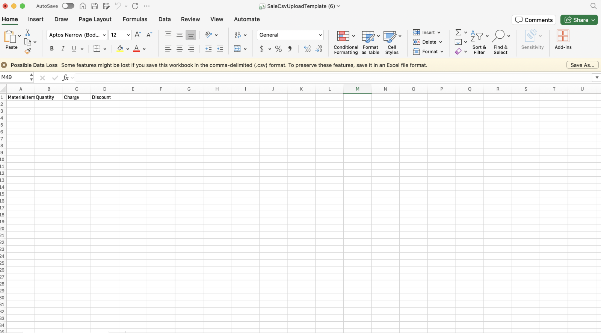
This is the Sale Order template that is provided:
Fill in the Material Code, Quantity, Charge and Discount
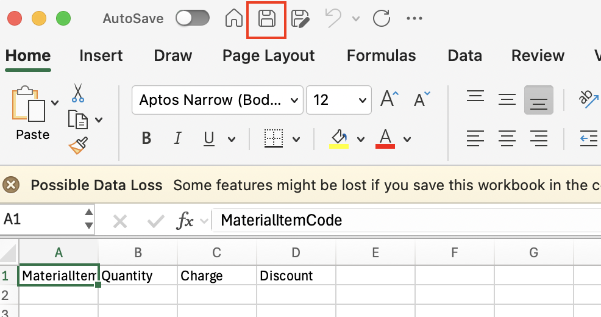
Once filled in click the icon in the top banner of Excel to save to your computer
When you are ready to upload your CSV Sale Order go back into “Sale: and click “New Sale Order from CSV”
Select your saved file and finish filling in the details of the Customer.
Want to learn more? Check out these related guides.