When setting up your users, you must select which roles and permissions they have. In this module, learn about different users roles and what areas they can view or edit in TidyStock.
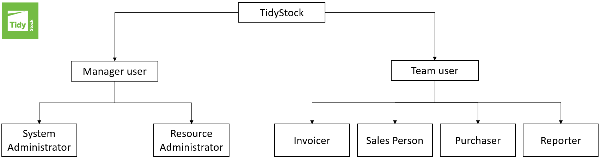
When creating users in TidyStock, you can assign one or more roles to control what areas of the system they can access. This guide explains each user role and the permissions it provides.
User roles at a glance
Role
Description
Permission
System Administrator
A user who can create, editand delete all company settings apart from resources
Can see Global settings tab, create and edit settings for Customers, Projects, Departments and more
Resource Administrator
A user who can create, editand delete resources and salary information only
Can access the Global Settings tab, create and manage application users, configure Actions on Behalf settings, and log in as another user when required.
Invoicer
A user who can generate invoices
Can see the Invoicing tab and generate project invoices to screen or Xero. Can enter Xero mapping settings under Global settings tab. Can also generate Purchase Orders.
Sales person
A user who can create and view sales
Can create and view sales
Purchaser
A user who can create purchase orders
Can create and manage purchase orders.
Reporter
A user who can generate reports
Can view and generate TidyStock reports.
Note: The Actions on Behalf feature allows authorised users to temporarily access TidyStock as another user. This can be useful during implementation or training when transactions need to be entered on behalf of team members.
User Roles and Permissions Checklist
Action / Access
System Admin
Resource Admin
Invoicer
Sales Person
Purchaser
Reporter
View Global Settings
✓
✓
✗
✗
✗
✗
Edit company settings
✓
✗
✗
✗
✗
✗
Manage users
✗
✓
✗
✗
✗
✗
Use Actions on Behalf
✗
✓
✗
✗
✗
✗
Create sales
✓
✓
✗
✓
✗
✗
View sales
✓
✓
✗
✓
✗
✗
Create purchase orders
✓
✓
✓
✗
✓
✗
Manage purchase orders
✓
✓
✓
✗
✓
✗
Generate invoices
✓
✓
✓
✗
✗
✗
Generate reports
✓
✓
✗
✗
✗
✓
Assigning Roles
To set and assign user roles and permissions head to Users under Global Settings
When creating or editing a user, the Roles section displays the available Manager and Team Member permissions that can be assigned. Check all that are necessary for the user.
Note:Users can be assigned multiple roles if they require access to several areas of the system.
Within some roles, there are options that you can enable specific access:
Sales Person:
Sale Location: Can set an automatic location this person sells from
Can this Sales Person view pricing?: If enabled, this Sales Person will be able to view pricing information.
Can this Sales Person view the Inventory Dashboard?: If enabled, this Sales Person will be able to view Inventory Dashboard.
Can this Sales Person view Charge?: If enabled, this Sales Person will be permitted to view and edit charge. Not relevant if “Can this Sales Person view Pricing” is enabled.
Assembler Sales Person: A Sales Person who can assemble and assembly during sales
Purchaser:
Material Item Archiver: A user who can archive material items.
Can this Purchaser approve Purchase Orders?: If enabled, this purchaser will be permitted to approve purchase orders.
Estimator: User that can manage quotes
Automatically make this user a Peer Estimator on new Quotes: If required, user can be manually deselected as Peer Estimator of an individual quote
API Access:
TidyStock offers API connections with other software's. You can control whether a user has access by checking “Allow API Access”:
More in this category
Want to learn more? Check out these related guides.