
Last Updated:
June 15, 2026
This guide explains how to set up your Shopify connection with TidyStock.
Want to view this guide all at once?
Download PDFStep 1.
Log in to your Shopify store.
Go to Settings in the bottom left corner.

Step 2.
Go to Apps, then click Develop apps.

Step 3.
Click Build apps in Dev Dashboard.

Step 4.
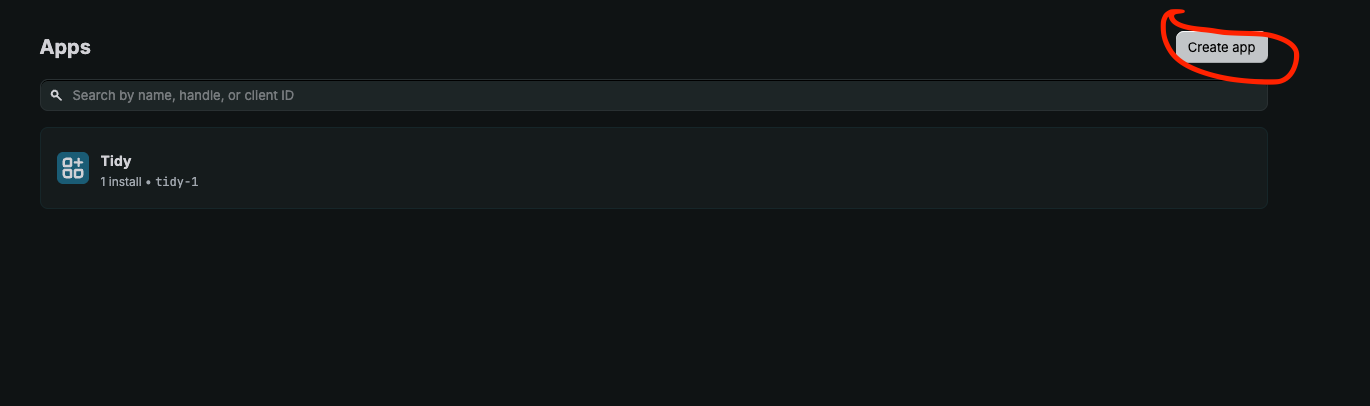
Click Create App and give it a name.

Step 5.
Click Select Scopes.

Step 6.
Scroll through the Admin API access scopes and make sure to tick read_orders under Orders.
Press Release.


Step 7.
Head back to the main dashboard and click on your newly created app.
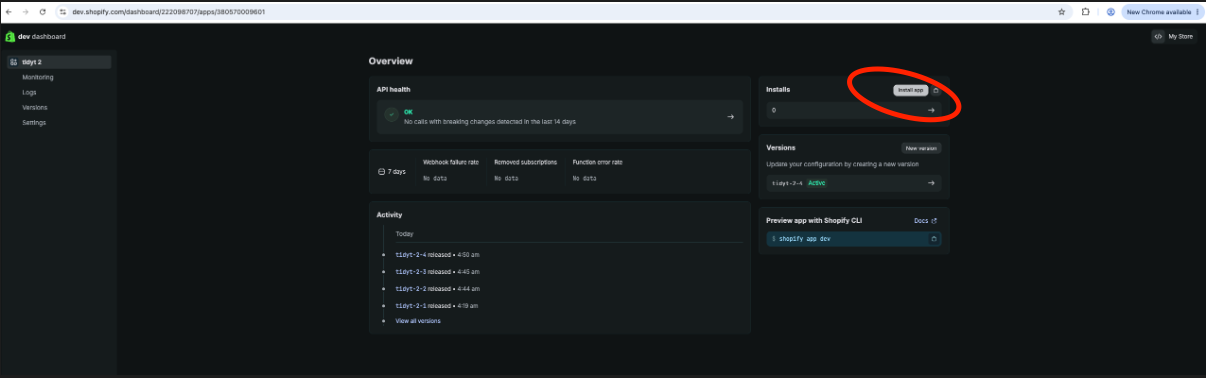
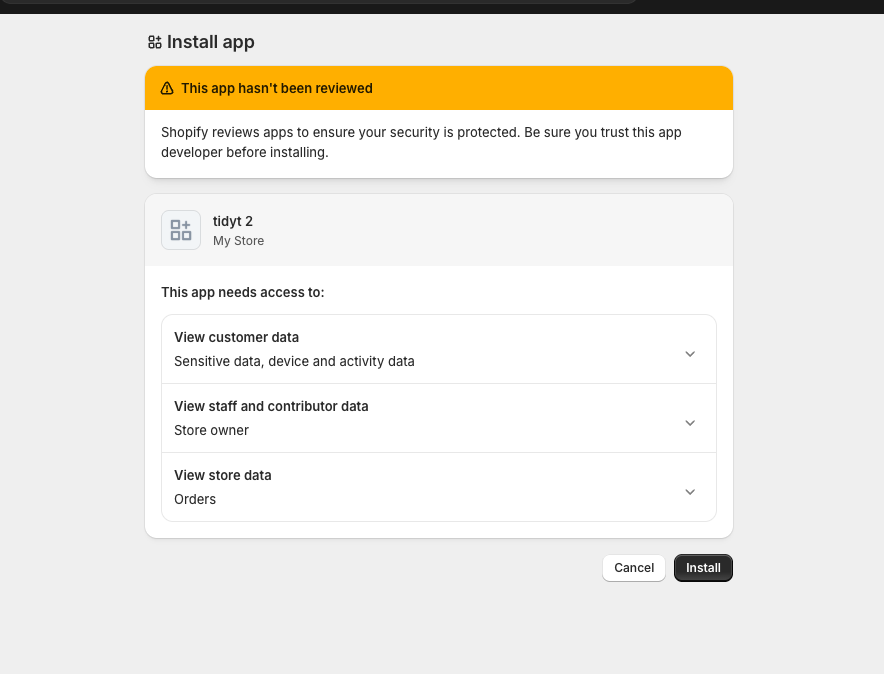
Press Install App and follow the prompts to install it on your shopify site.

Step 8.
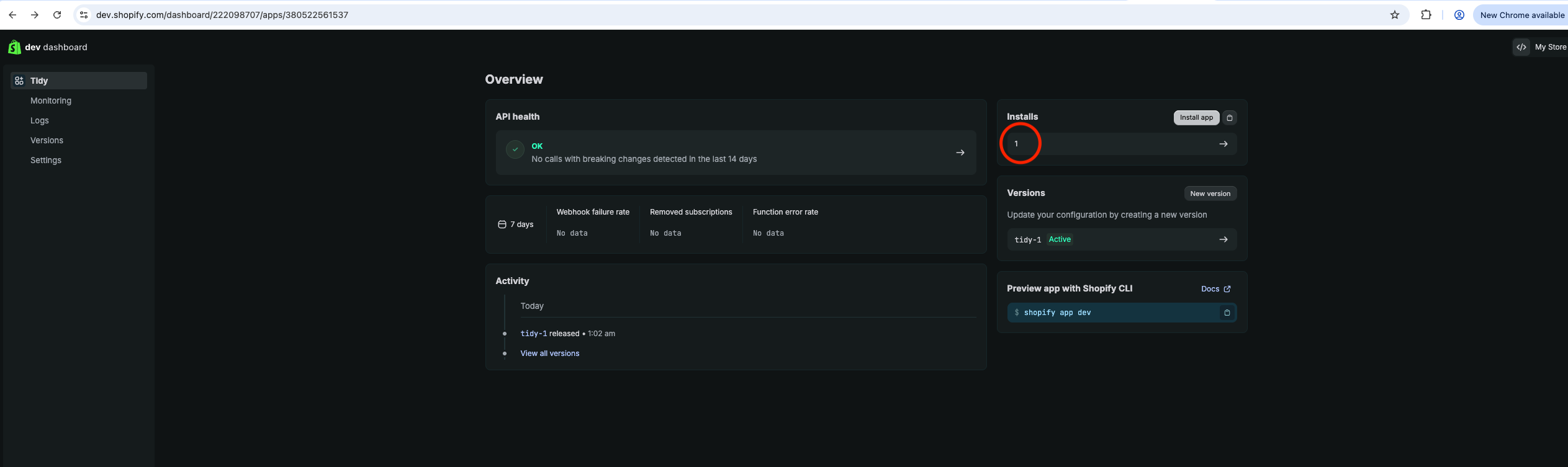
Go back to the App Dashboard and you should now see your new app has 1 new install.
Head back to the settings page. Here you need to copy down the Client ID and Secret values.
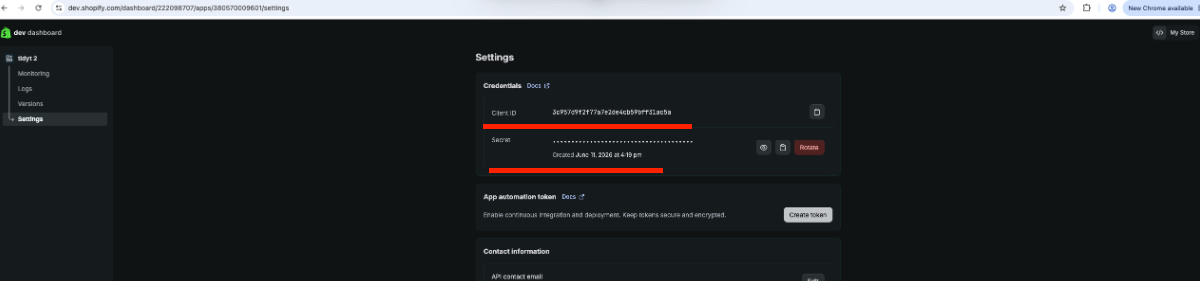
You will also need your site url but that can just be found back in the main shopify admin page.

Step 9.
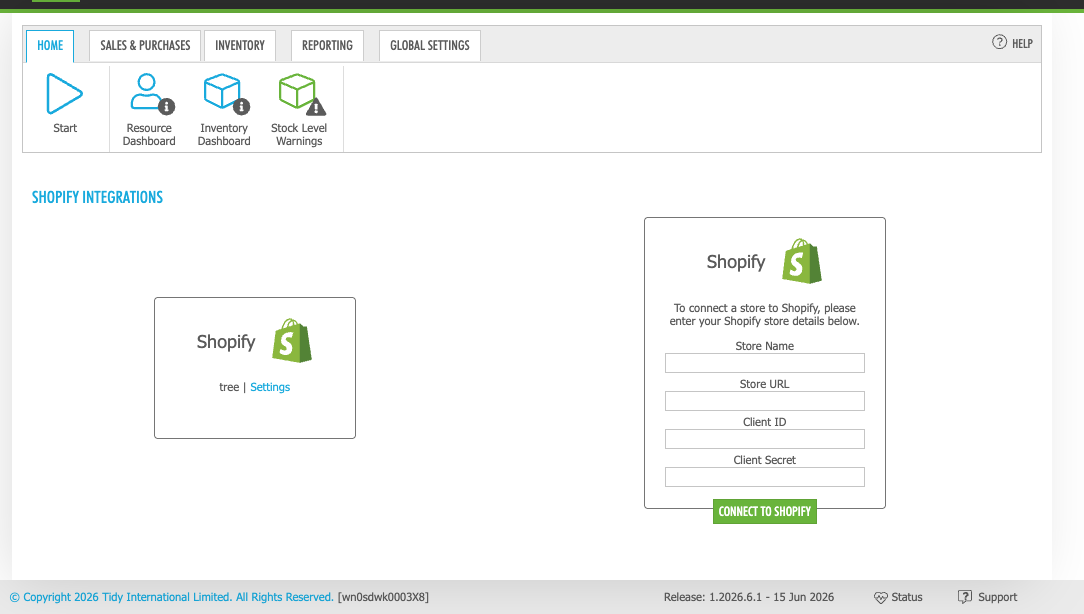
Go to your Tidy environment, and navigate to Global Settings > Shopify.
Note: If the Shopify icon isn’t visible, please contact our support team so we can enable access for you.
Step 10.
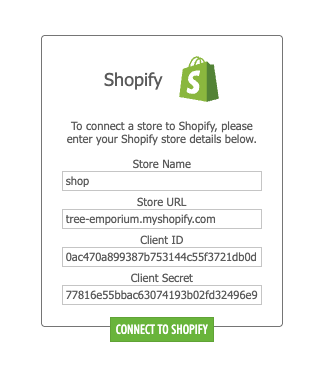
Paste the Store URL and the Client ID + Secret into the Store URL and client fields respectively.
Enter your Store Name. Press Connect to Shopify.
Step 11.
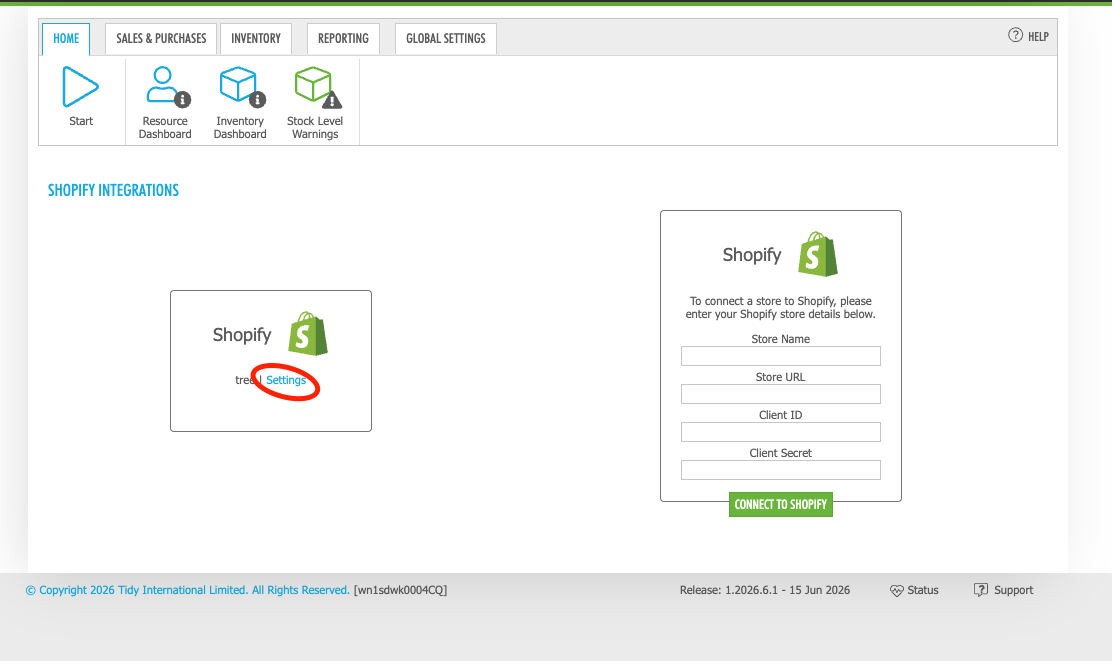
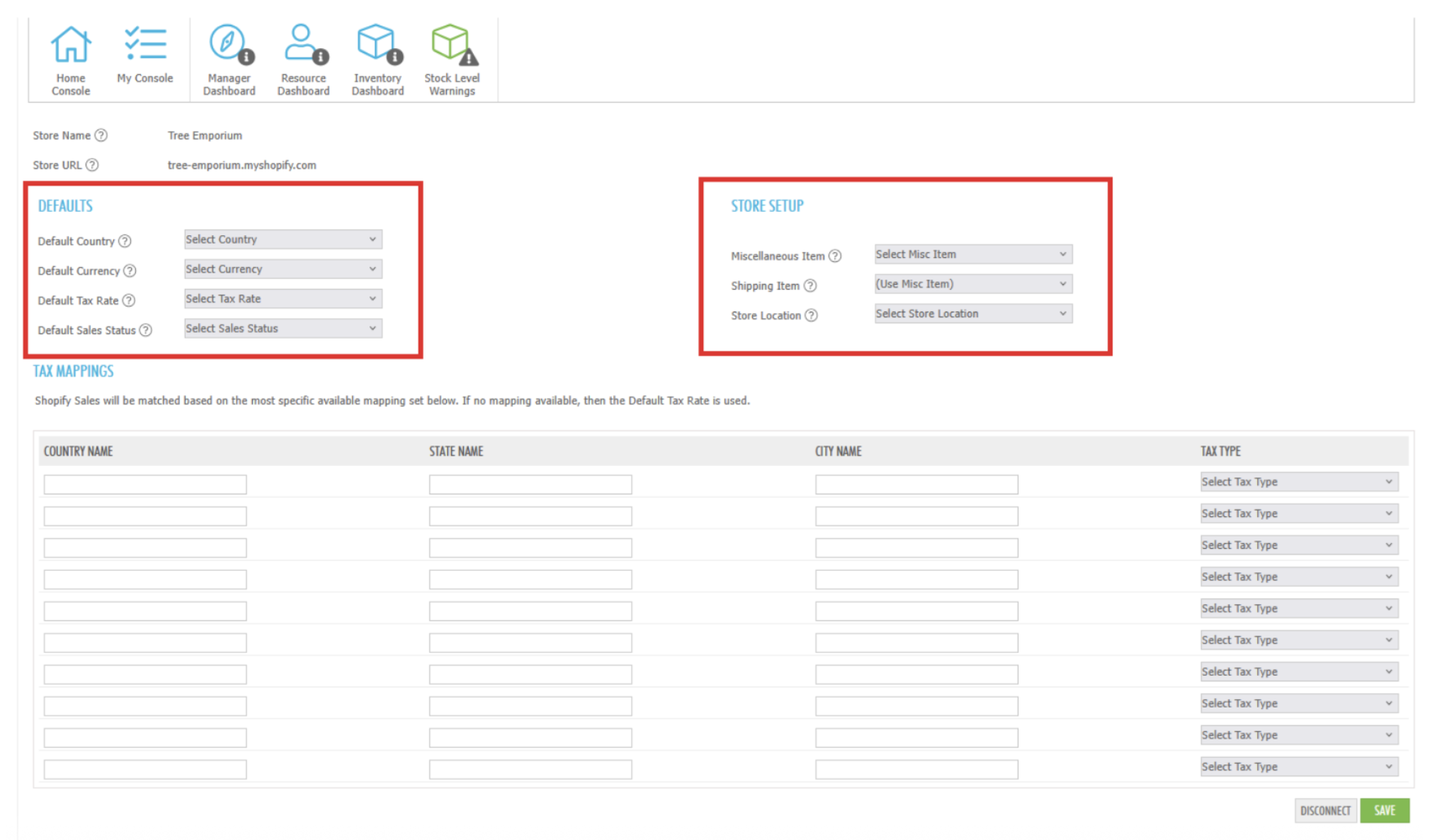
Navigate to the Settings for your Store.
Step 12.
Fill out all the fields for Defaults and Store Setup.
Want to learn more? Check out these related guides.