Last Updated:
October 19, 2026
In this guide, learn all you need to know about getting started with TidyStock. It will also explain the differences between Preview and Setup Mode.
Want to view this guide all at once?
Download PDFWelcome to Tidy
This guide will take you through the first steps of getting started with Tidy and, most importantly, explain the difference between Preview Mode and Setup Mode.
There is one important thing to understand before you start adding your own information:
Note: Data added while you are in Preview Mode will not be kept when you purchase Tidy.
For this reason, we recommend following the steps below before entering your actual company data.
When you first log in to Tidy, you'll start in Preview Mode.
Preview Mode is designed to give you the opportunity to explore Tidy and see how the system works before setting up your own environment.
You'll find demo data already loaded into Tidy, including examples of, users, materials, assemblies and other sample information.
The demo data is there so you can click around, test different features and get an idea of how Tidy could work for your business.
You can access Preview Mode from your Home page by clicking Start.
Home → Start
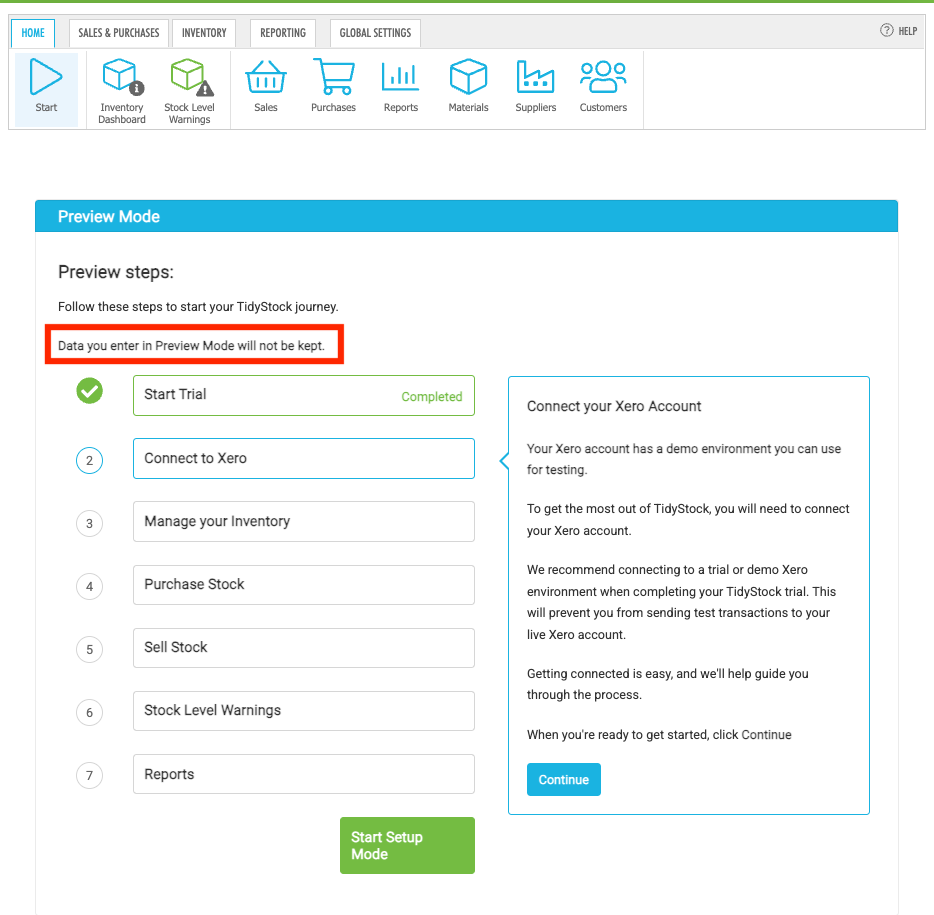
While you're exploring Preview Mode, you can also connect Tidy to the Xero Demo Account.
This allows you to explore how the Tidy and Xero integration works without connecting your real Xero organisation.
The Xero Demo Company contains fictional data, making it a great way to test the integration and see how Tidy and Xero work together.
Follow the step-by-step guide here:
Connect to your Xero Demo Account
You can use the Xero Demo Account while you're exploring Preview Mode. When you're ready to set up Tidy with your own company information, you'll then move into Setup Mode and connect your own Xero organisation when appropriate.
While you're exploring Preview Mode, you may be tempted to start replacing the demo information with your own.
We recommend waiting until you've moved into Setup Mode.
If you stay in Preview Mode and continue adding your own data, that data will not be retained when you purchase Tidy.
Preview Mode is for exploring and testing.
Setup Mode is for setting up your business.
Once you've had a look around Tidy and are comfortable with how the system works, the recommended next step is to complete Preview Mode and move into Setup Mode.
Moving into Setup Mode will clear the demo data and give you a clean environment to start setting up Tidy with your own company's information. This means you won't have to work around the demo users, materials, locations or other sample information when setting up your environment.
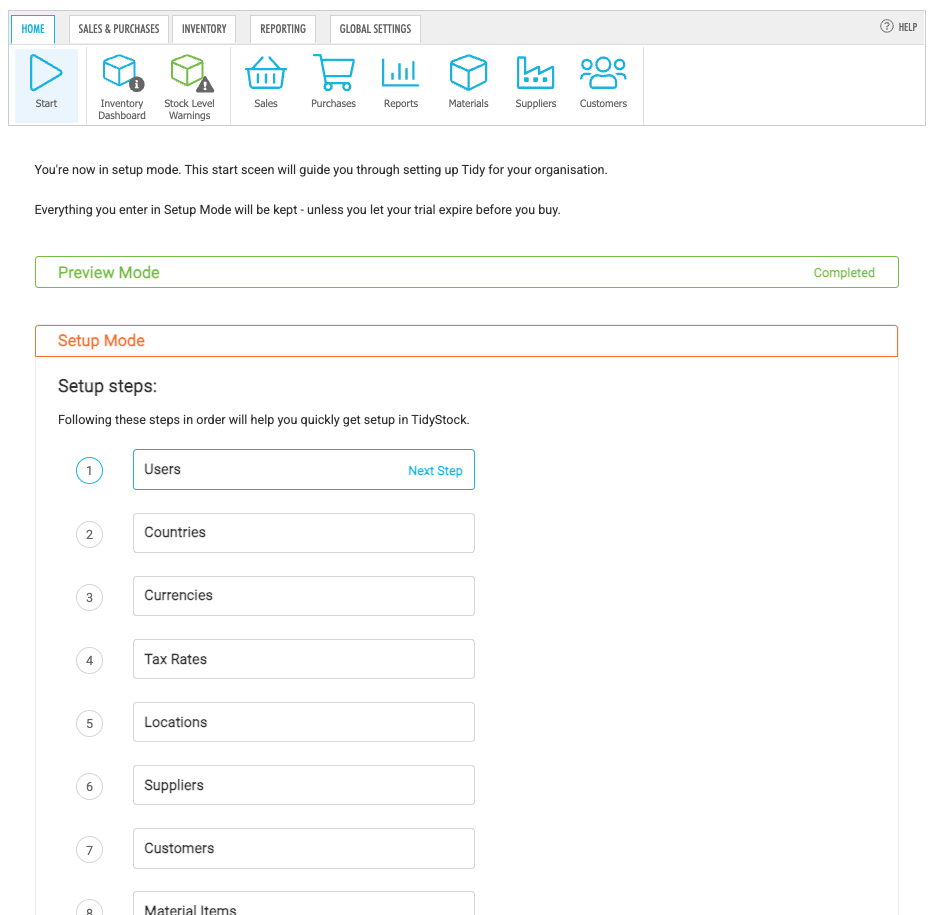
Once you're in Setup Mode, you can start adding your own company data.
Data that you add during Setup Mode can be retained in your environment when you purchase Tidy.
This means you can use your trial period to start setting up Tidy and have your environment ready to go when you become a customer.
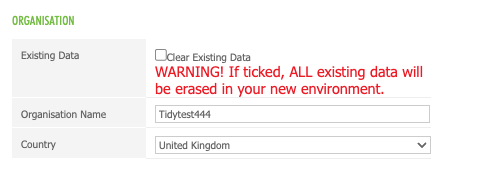
When you're ready to purchase Tidy, you'll be given a choice regarding the data already in your environment.
You'll have the option to clear or keep existing data
If you've spent time setting up your company data and want to keep it, make sure you select Keep Existing Data when purchasing Tidy.
To purchase Tidy, you must have an active trial.
This means it's important to make your decision before your trial ends.
If your trial expires before you purchase Tidy, you'll need to sign up for a new trial and start the process again.
Want to learn more? Check out these related guides.